From iPhone to YouTube: How to Transcribe Any Video with AI
For local recordings, VideoToTranscript makes it easy to get transcript from MP4 files. Upload your video to generate a timestamped draft, then review the text alongside playback. If the video is already online, submitting its source link can save you from downloading and uploading the file.
Before working with an important recording, check the supported inputs, file limits, speaker identification, timestamps, editing options, and export format. This guide covers those decisions for local videos, iPhone recordings, and YouTube videos, then explains how to improve accuracy and reuse the finished transcript.
Why Transcribe a Video Instead of Rewatching It?
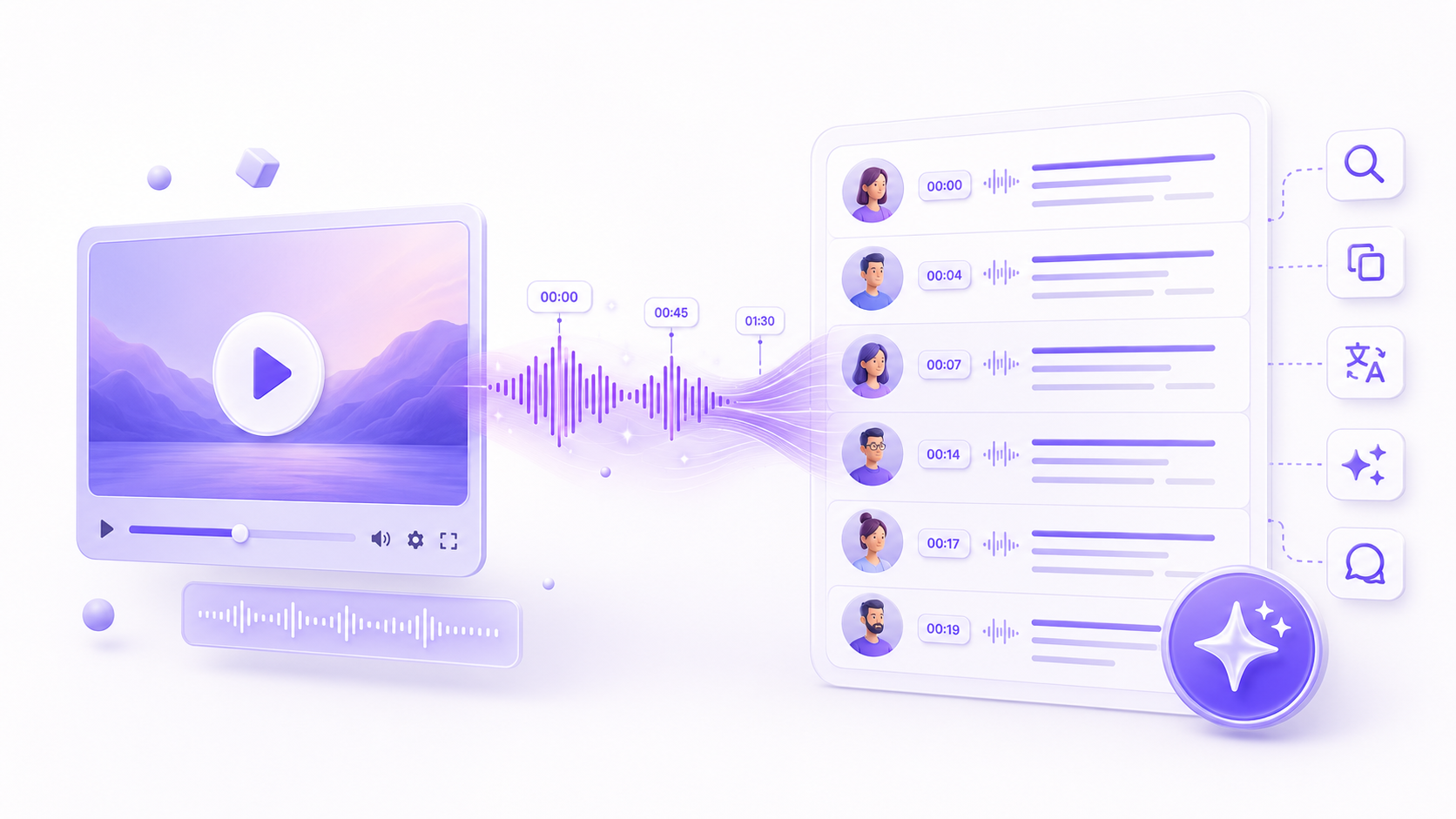
A transcript makes recorded information searchable. Timestamps take you back to the corresponding moment in the recording, while speaker labels show who said what. This is useful for many kinds of work:
- Students can turn lectures into searchable study notes.
- Journalists and researchers can review interviews and verify quotations.
- Creators can find clips, quotes, hooks, and ideas for new content.
- Marketing teams can reuse webinars, demos, and customer conversations.
- Project teams can locate decisions and action items in recorded meetings.
Transcription creates a bridge between a recording and later tasks such as editing, translation, research, and content planning.
How Do I Transcribe a Video Into Text?
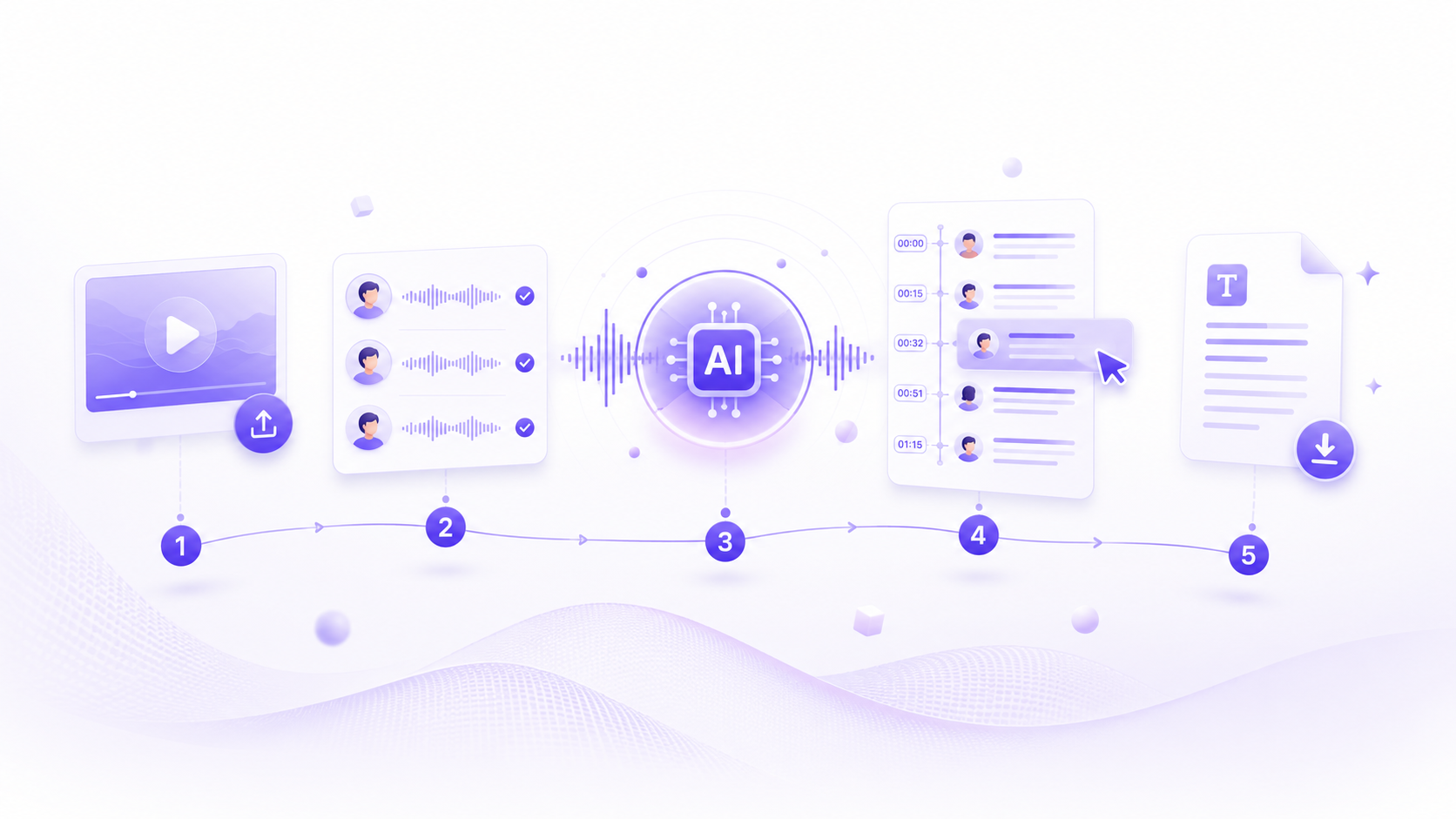
Most AI transcription workflows follow five basic steps.
1. Prepare the recording
Start with the clearest version available. Speech recorded close to a microphone is easier to transcribe than distant speech in a noisy room. Check that you have permission to process the recording, especially if it contains private or unpublished material.
2. Upload the file or add the video link
For a local video, choose a tool that supports its file type and size. For an online video, check whether the tool accepts a direct link, which can eliminate the need to download and upload the file separately.
For a browser-based workflow, you can upload a supported video or audio file and begin without creating an account. VideoToTranscript accepts common formats such as MP4, MOV, AVI, WEBM, MP3, and WAV, with a local upload limit of 250 MB.
People searching for free transcription video to text should compare the complete workflow, not just the first draft. The tool should support the source format, preserve timestamps, identify speakers when needed, and provide a clear way to review and export the result.
3. Decide whether you need speaker identification
Turn on speaker identification for interviews, podcasts, panels, and meetings. For a single-person presentation, separate labels may add clutter without useful information.
4. Generate and review the transcript
Treat the AI-generated transcript as a first pass, not the final authority. Keep the video close at hand and pay extra attention to:
- Names, brands, and places
- Dates, prices, measurements, and statistics
- Acronyms and technical vocabulary
- Speaker changes
- Overlapping dialogue
- Strong accents or quiet speech
A tool that connects transcript segments to timestamps makes this review much faster. You can select an uncertain passage and listen to the corresponding moment instead of searching the entire recording.
5. Export the text for its intended use
A clean TXT file may be ideal for notes, document editors, or AI tools. Timestamps help users return to the source, while speaker labels matter when participant identity affects the meaning. Choose an output format suited to the next task.
How to Transcribe My Video Without Losing Important Context
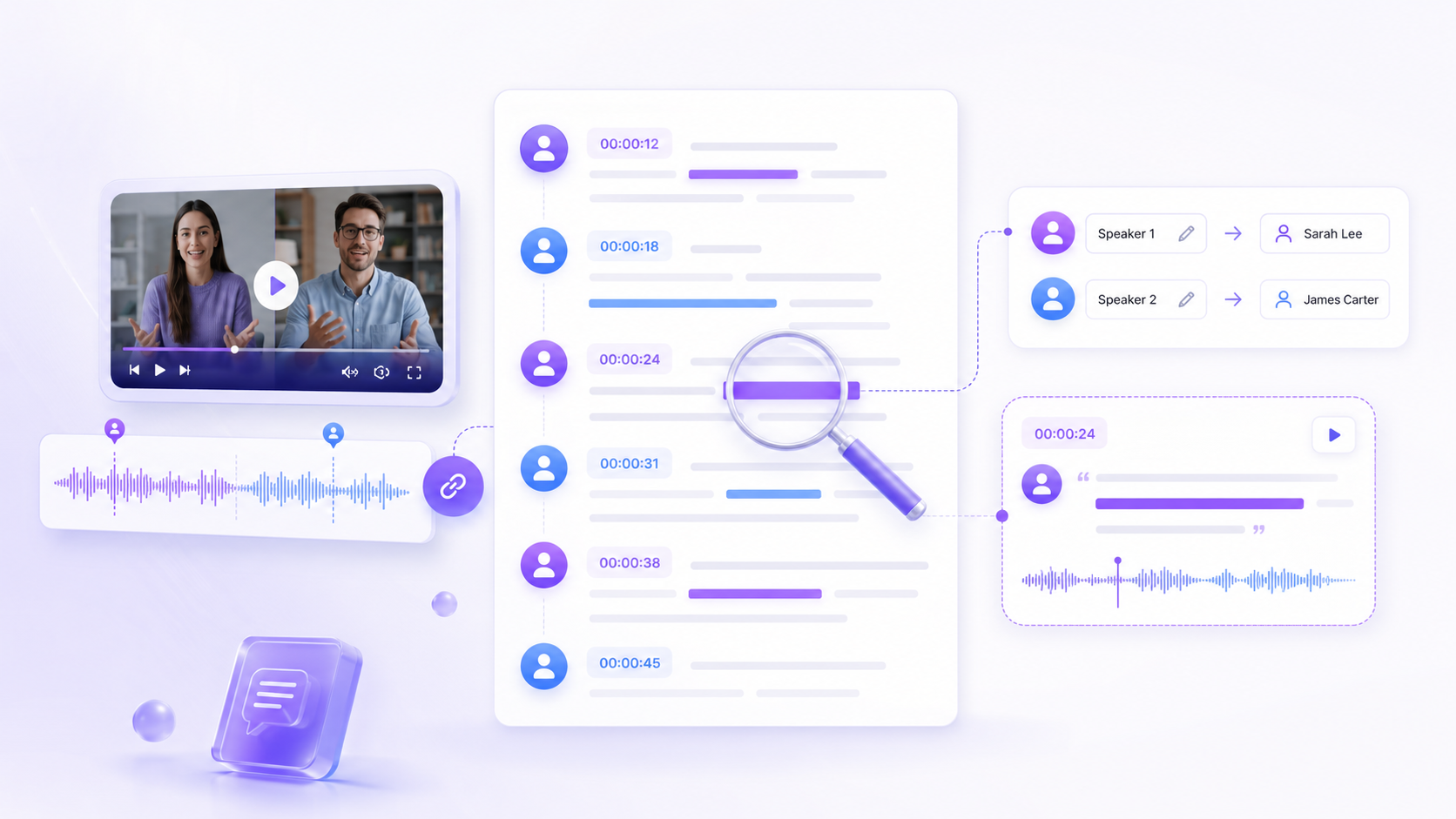
When people ask how to transcribe my video, they often focus only on getting words onto a page. A transcript can still be difficult to use if it loses speaker attribution, timing, or its connection to the source.
Use this review sequence:
- Read the complete transcript once to understand its structure.
- Rename generic speaker labels using real names or roles when appropriate.
- Check every major speaker change.
- Verify important claims, quotations, numbers, and proper nouns.
- Remove obvious filler only if the edited transcript does not need to remain verbatim.
- Preserve timestamps for passages that may need verification later.
- Export a clean copy and keep the reviewed source version available.
A polished sentence can look convincing even when one critical word is wrong. Maintaining a clear path back to the recording makes the transcript easier to trust.
How to Transcribe a Video on iPhone
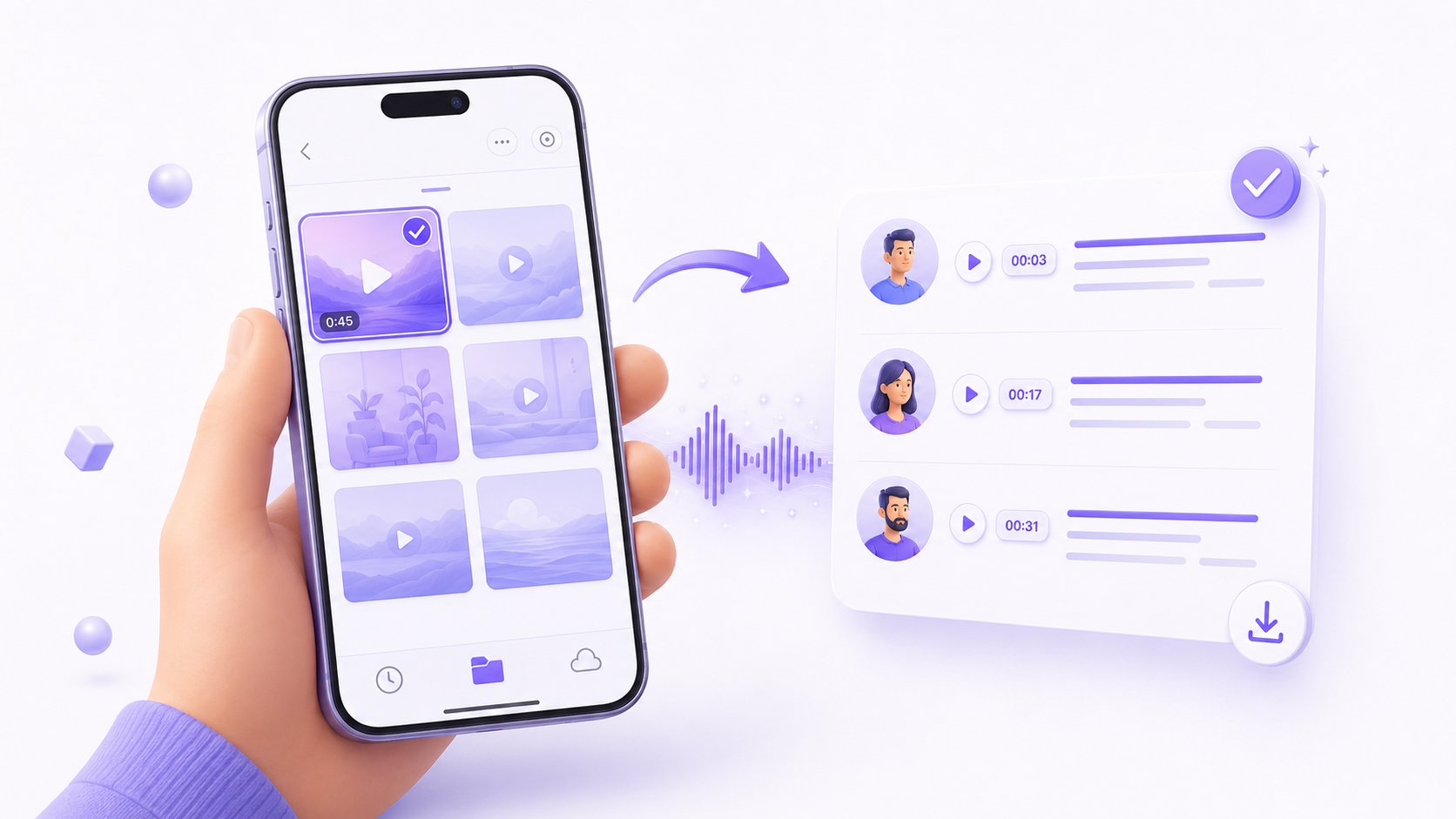
The simplest answer to how to transcribe a video on iPhone is to use a browser-based tool. You do not necessarily need a desktop application or a complicated transfer process.
First, locate the recording in Photos or Files. If the video is stored only in Photos and the upload picker cannot access it directly, use the iPhone Share option to save a copy to Files. Then open the transcription website in Safari, choose the upload option, and select the file.
Before uploading, check:
- The file is in a supported format.
- The recording is within the tool's size limit.
- Your connection is stable enough for the upload.
Large 4K videos can be inconvenient to upload. If the service accepts audio files, exporting the audio track can reduce upload time. Do this only when you do not need synchronised video playback.
Once the transcript is ready, check names, numbers, and any speech recorded in a noisy environment. Download or copy the reviewed text before closing the browser. If the recording is sensitive, also confirm the service's privacy and retention policies before uploading.
How to Use AI to Transcribe a YouTube Video
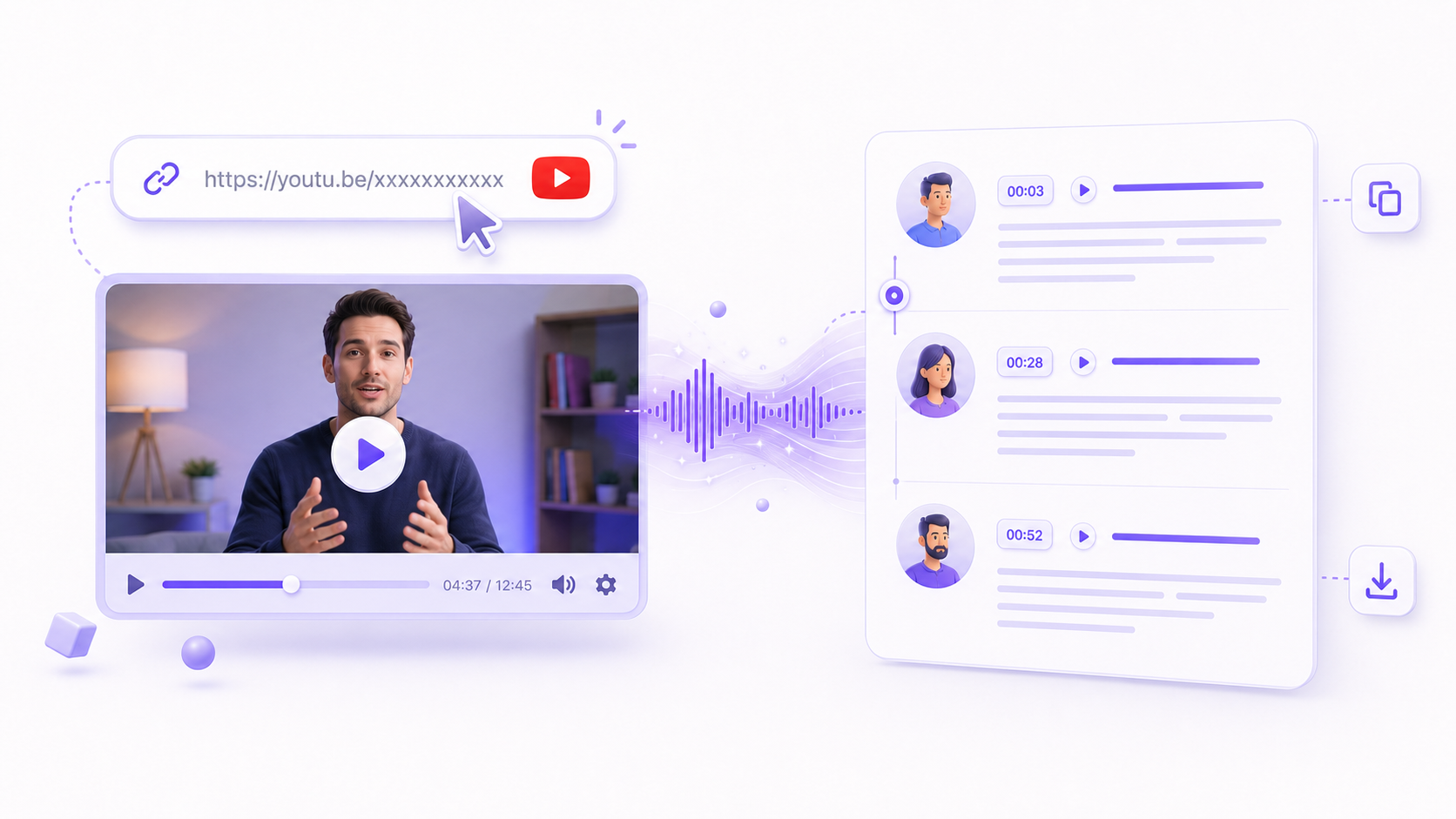
People asking how to use AI to transcribe a YouTube video have two possible routes: obtain the video's existing captions or use AI to transcribe its audio. Existing captions can be quick to obtain, but they may be incomplete, unavailable, or poorly formatted.
VideoToTranscript keeps its YouTube transcript generator free to use, allowing you to paste a YouTube URL and generate editable, timestamped text without downloading the video. Videos without subtitles can be up to four hours long, while videos with subtitles have no documented duration limit.
The practical workflow is:
- Copy the URL of a public YouTube video you are authorised to process.
- Open a tool that supports YouTube links.
- Paste the URL rather than downloading the video manually.
- Choose speaker identification if the video contains a conversation.
- Generate the transcript.
- Review important sections while playing the video.
- Copy or download the text for your notes, article, research, or content plan.
Public availability does not make a video free to republish. Copyright, privacy, platform rules, and fair use considerations still apply.
Which AI Can Transcribe a Video?
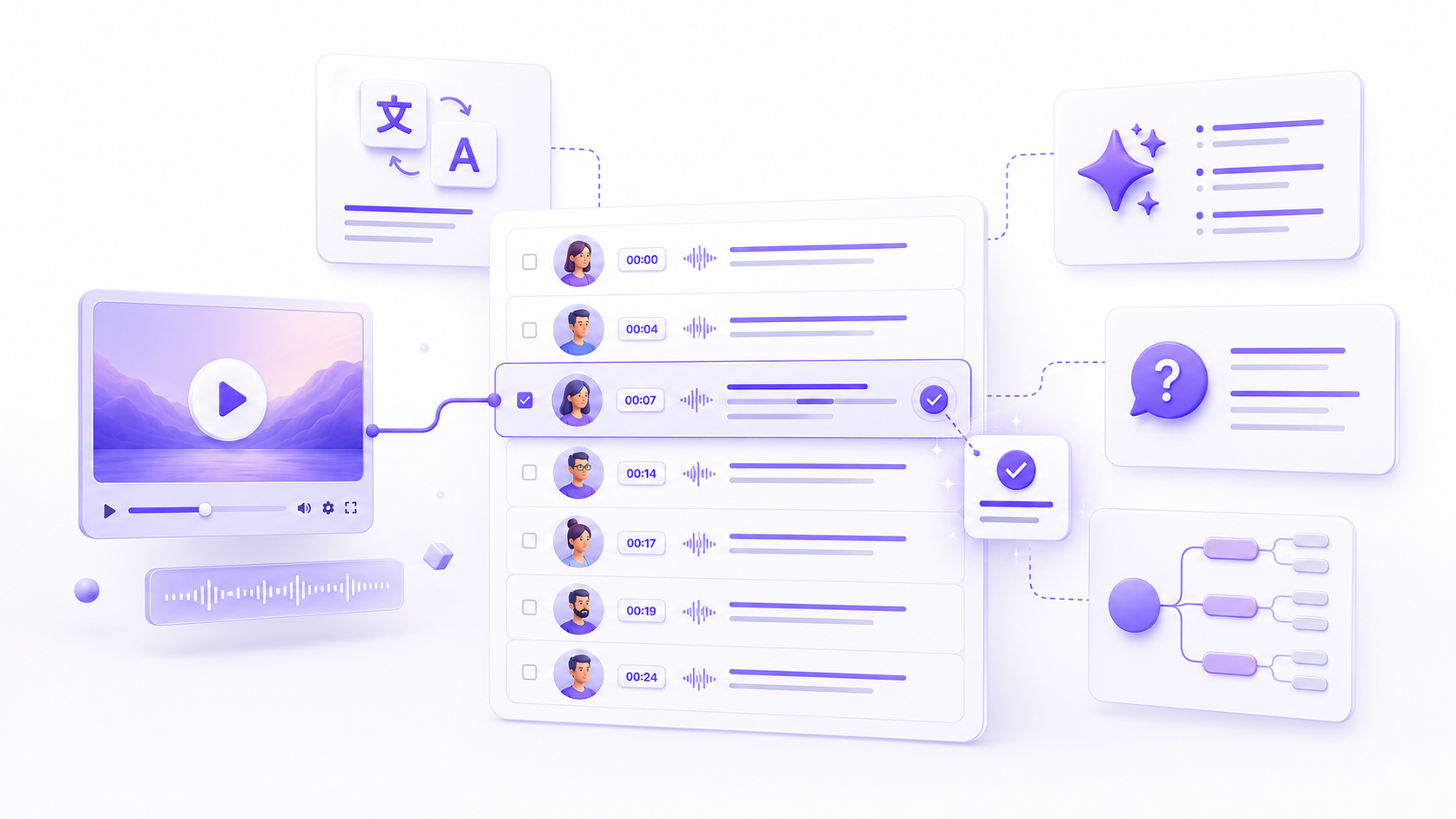
When people ask which AI can transcribe a video, the useful question is whether the tool's complete workflow matches their source and intended output, not simply whether it recognises speech.
Compare tools using these criteria:
Input options
Does the tool accept your actual source, such as a local video, audio file, or YouTube link? Check supported formats, file size, and duration before uploading a long recording.
Review experience
Can you play the original media beside the transcript? Can you click a transcript segment to jump to the correct moment? These features often save more time than a small difference in raw transcription speed.
Speaker handling
For a conversation, look for automatic speaker identification as well as the ability to rename speaker labels or add new ones. Automated labels still need review when people interrupt or speak at the same time.
Editing and export
Make sure you can correct and export the text. TXT is flexible for documents, notes, archives, and further AI processing. If you need subtitles, check for those formats before committing.
Language and post-transcription tools
If your next step is translation, summarisation, question answering, or topic mapping, an integrated workflow can reduce copying between services. VideoToTranscript, for example, supports translation of selected sections, summaries, transcript-based questions, and downloadable mind maps in addition to basic transcription.
Access and privacy
Free access and privacy are separate questions, so check both before uploading an important recording. Confirm what the free access includes, whether an account is required, and how the service handles uploaded data. VideoToTranscript currently states that no login is required and that it does not retain user data. Even with that policy, only upload recordings you are authorised to process.
How to Improve AI Transcription Accuracy
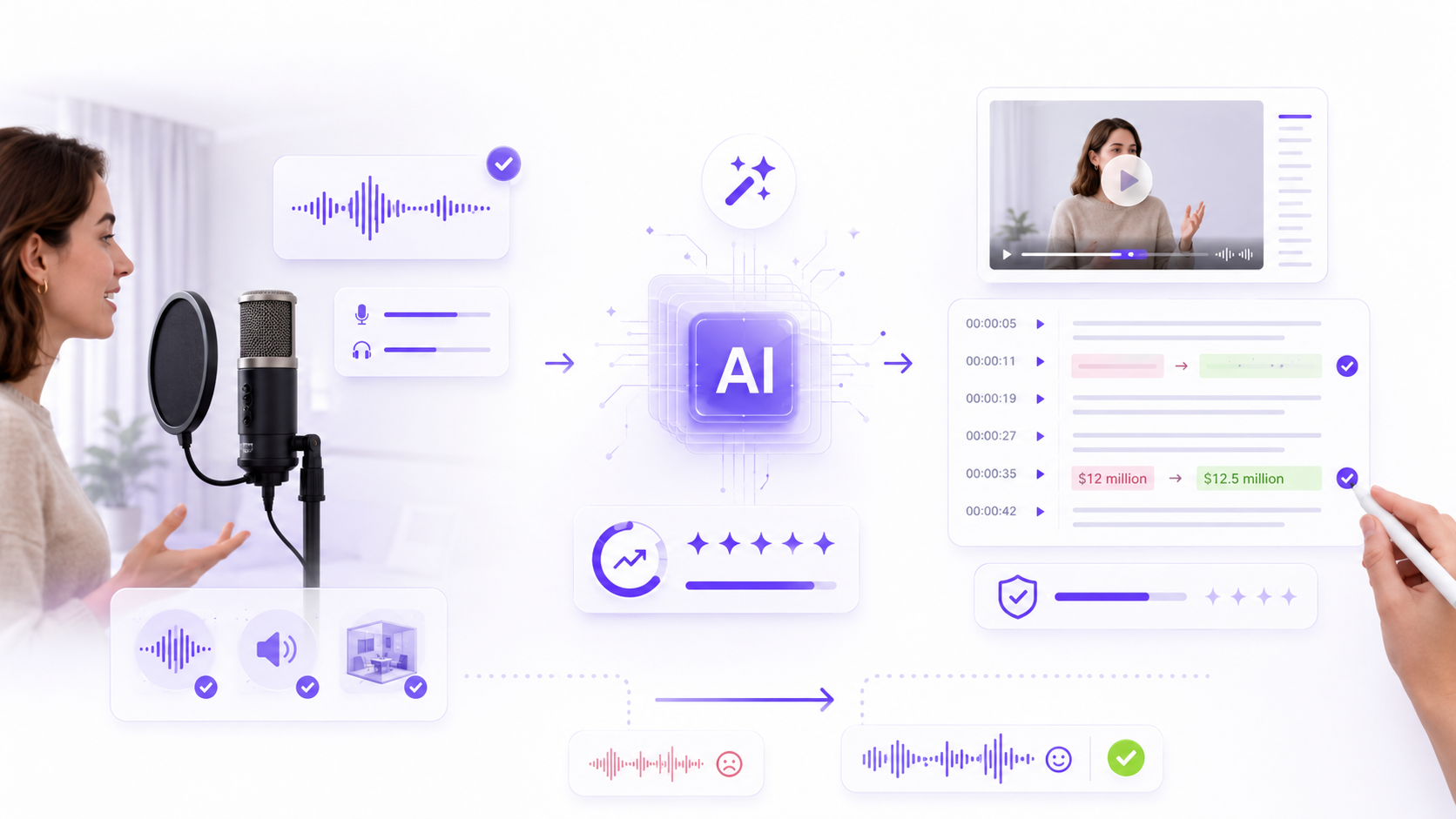
Audio conditions, speaker behaviour, and subject matter all affect the first draft. For better results:
- Use the original recording rather than a copy played through speakers.
- Keep microphones close to participants.
- Reduce music, echo, wind, and background conversation.
- Ask participants not to talk over one another.
- Pronounce names and specialised terms clearly when recording.
- Split unrelated recordings into separate files when practical.
- Review the transcript while the source is still fresh in your mind.
If you create recordings regularly, improving the capture process will usually save more time than repeatedly correcting poor audio. A modest microphone in a quiet room can produce a more useful transcript than an expensive camera placed far from the speakers.
Common Video Transcription Mistakes
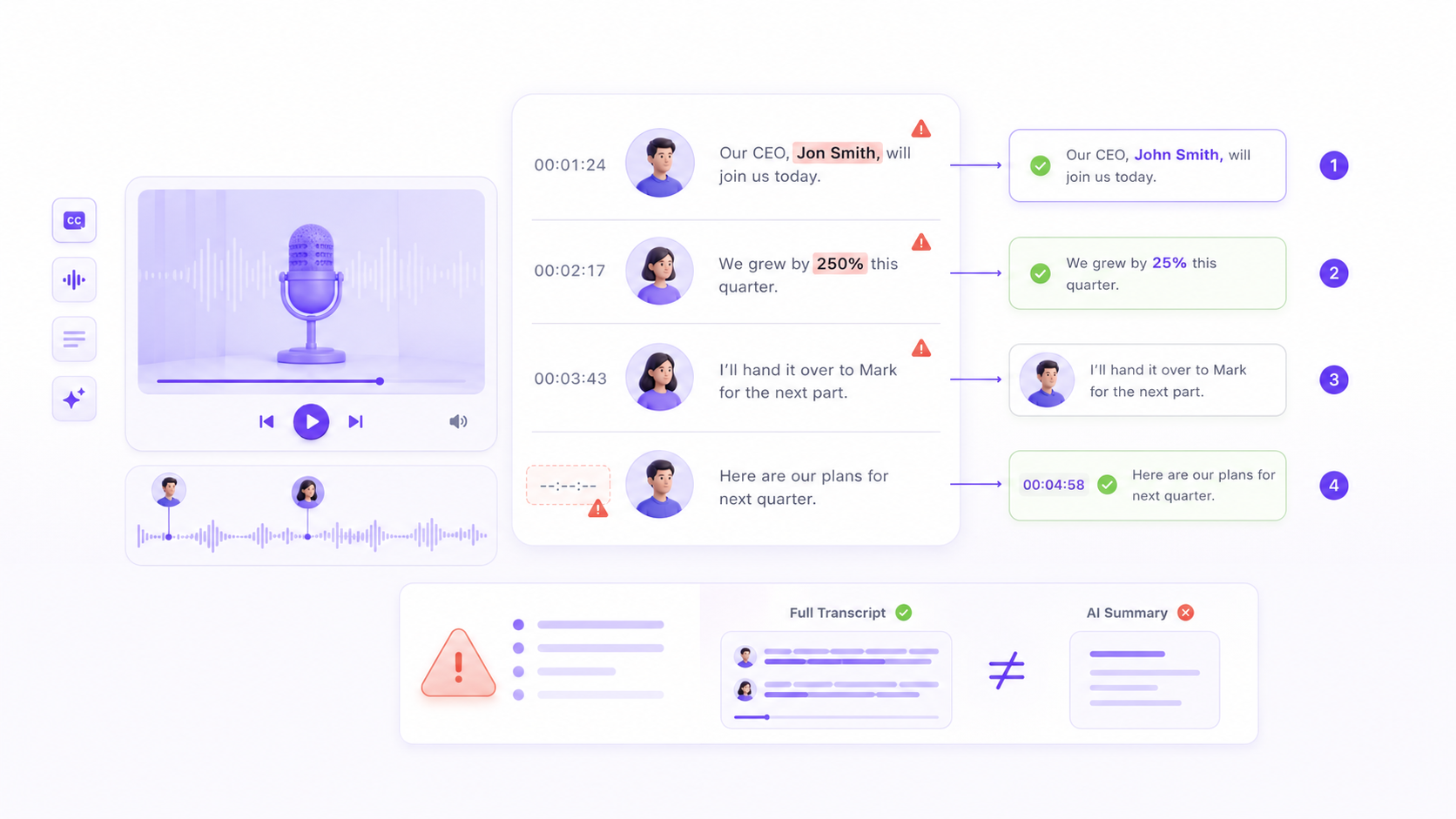
Avoid these common mistakes:
- Publishing raw AI output without checking names, numbers, or speakers.
- Removing timestamps before important passages have been verified.
- Choosing a tool without confirming the required export format.
- Uploading sensitive material without confirming that you are authorised to process it or reviewing the service's data-handling practices.
- Treating a summary as a substitute for the complete transcript.
A summary can help you navigate the content, but it compresses information and may omit nuance. Return to the transcript and recording before relying on it to support an important claim.
What Can You Do After Transcribing a Video?
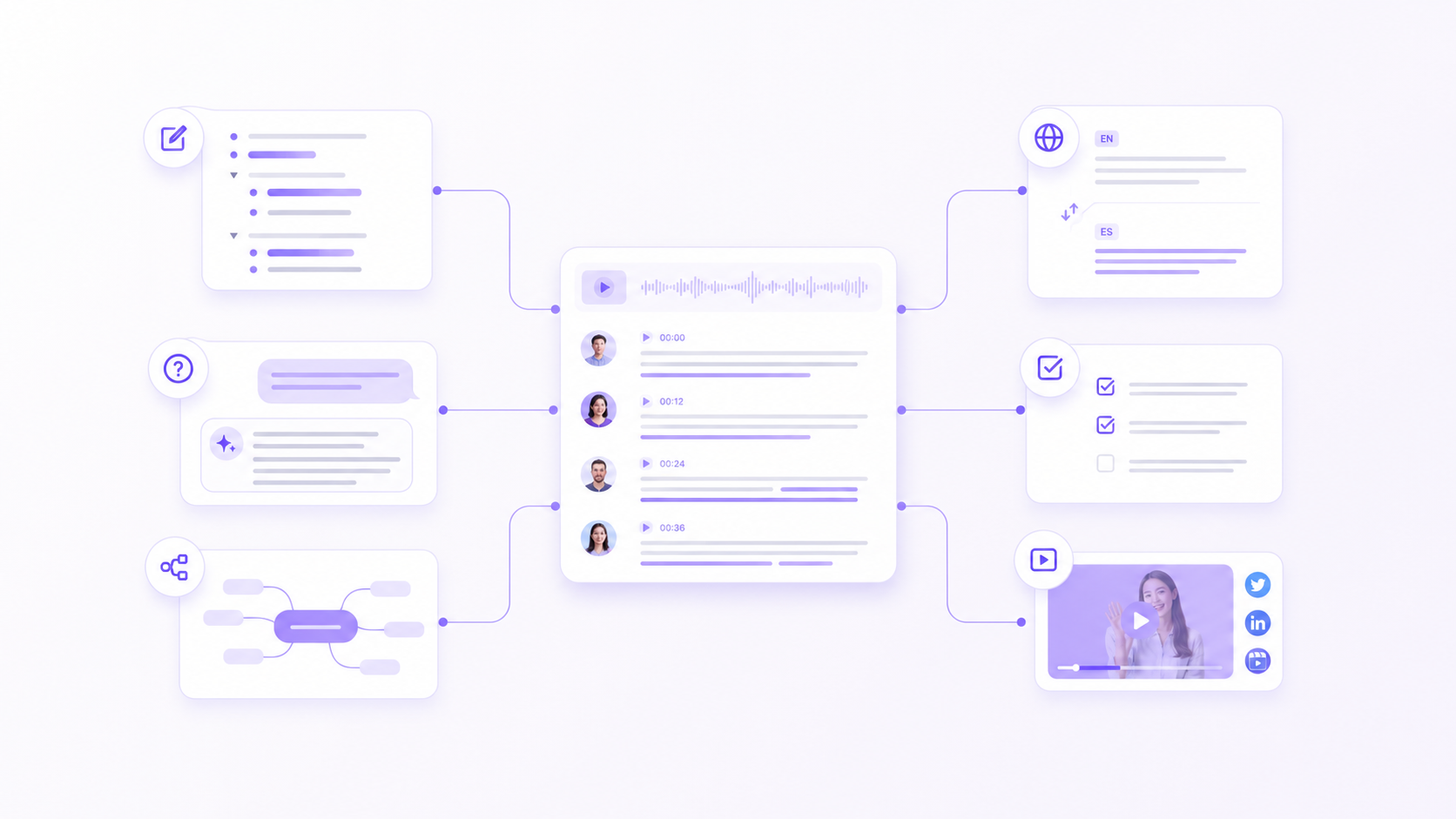
A reviewed transcript can support several workflows:
- Turn a webinar into an article outline.
- Extract quotations from an interview.
- Translate only the passages needed for another audience.
- Create meeting notes and identify possible action items.
- Generate a topic map from a long lecture or discussion.
- Ask questions about the recording before returning to the relevant passages.
- Find short sections that could become social clips.
- Archive spoken knowledge in a searchable project folder.
The key is to separate discovery from verification. AI summaries, questions, and mind maps can help you find patterns quickly. The transcript and synchronised recording remain the most reliable sources for checking exact wording.
Final Checklist
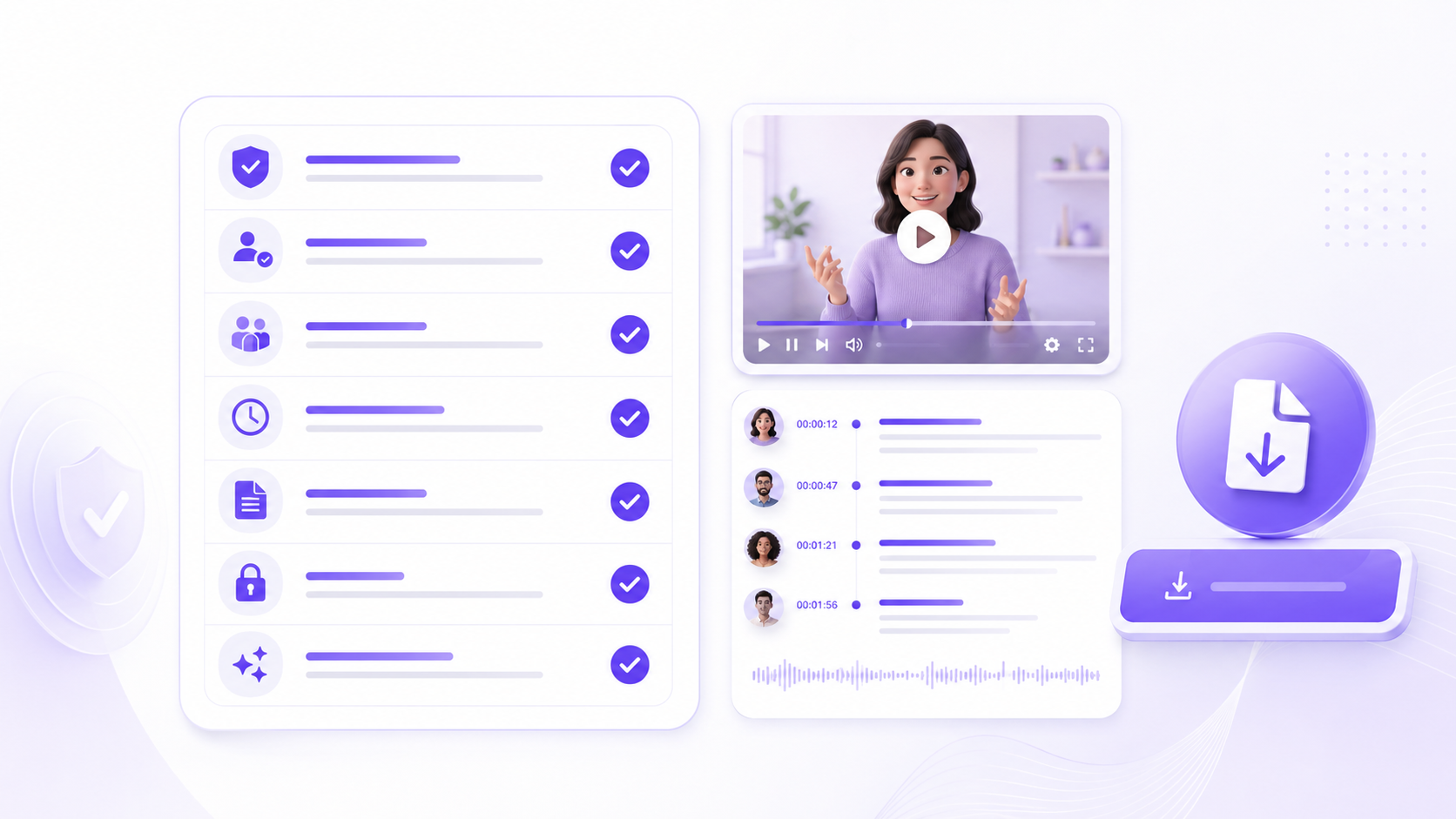
Before you finish, confirm that:
- The recording was uploaded and processed with proper authorisation.
- Important names, numbers, and technical terms were checked.
- Speaker labels are correct.
- Key statements can be traced back to timestamps.
- The export format fits the next task.
- Sensitive information is handled appropriately.
- Summaries or AI answers have been verified against the source where accuracy matters.
Transcribing a video is now easy to start, but a reliable result still comes from a thoughtful workflow. Choose a tool that fits the source, preserve the connection between text and playback, review the details that matter, and export the transcript in a form that supports what you plan to do next.